Customers
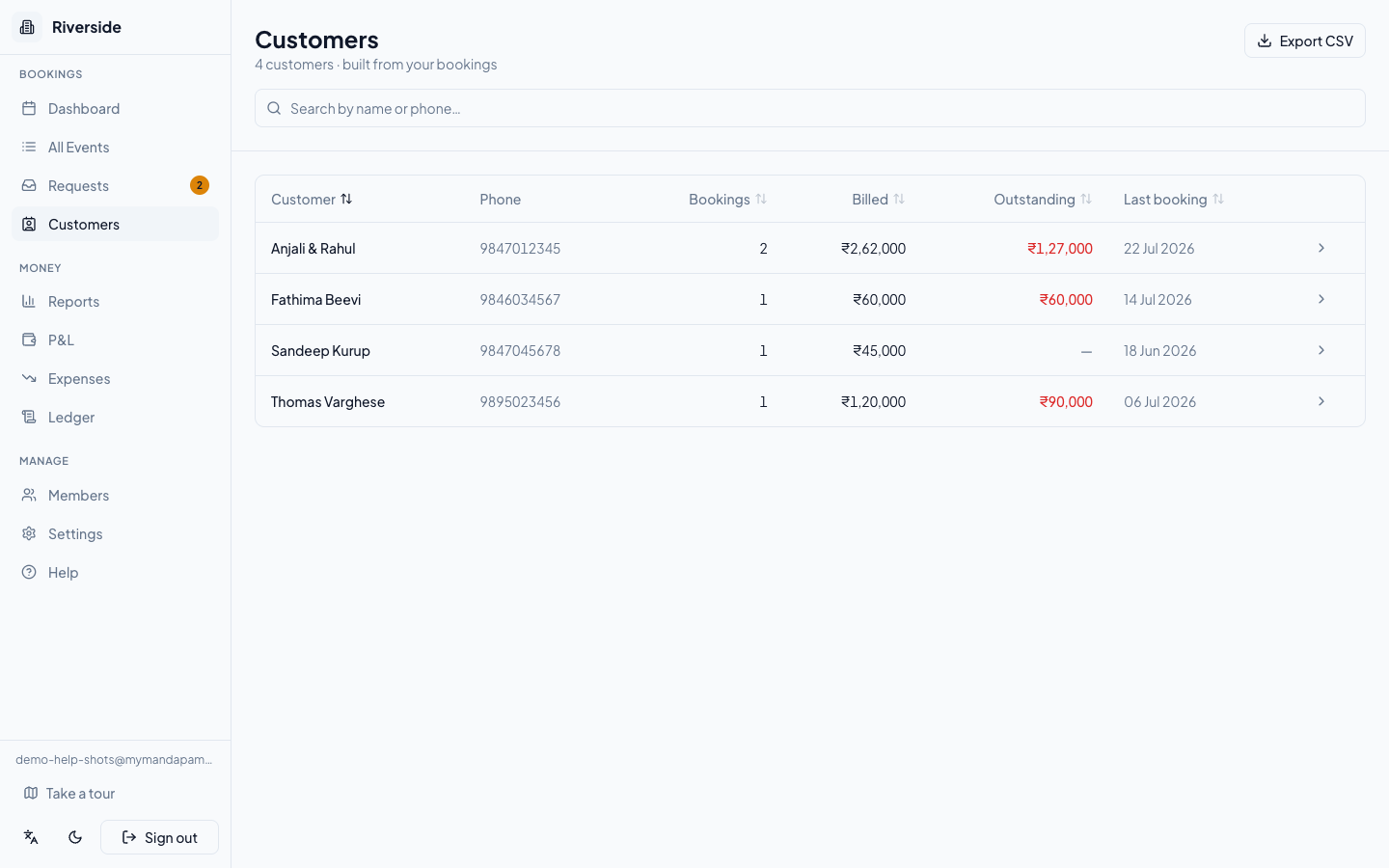
MyMandapam builds your customer directory automatically. Every time you create or update a booking, the contact is added — or updated — as a customer record keyed to their phone number. There is nothing to maintain by hand.
Finding a customer
Go to Customers in the sidebar. The list shows everyone who has booked with your venue, along with their total bookings, amount billed, outstanding balance, and date of last booking.
- Use the search bar to filter by name or phone number.
- Click any column header — Customer, Bookings, Billed, Outstanding, or Last booking — to sort ascending or descending.
- Click Export CSV to download the full list as a spreadsheet.
On mobile the list appears as cards; outstanding balances in red indicate money still due.
Viewing a customer's history
Click any row to open the customer detail page. At the top you will see a four-panel summary:
| Panel | What it shows |
|---|---|
| Bookings | Total number of bookings (all statuses) |
| Billed | Sum of all non-cancelled booking totals |
| Received | Total payments recorded across those bookings |
| Outstanding | Balance still due (shown in red when > ₹0) |
Below the summary is the full booking history — date, hall, total, status badge, and the individual payments recorded against each booking (with receipt numbers where available). For customers who have fully settled at least one booking, you will also see the average number of days from event date to final payment.
tip: If Outstanding is red, open the relevant booking from Payments & Receipts to record the missing payment. The customer record updates automatically.
Editing a customer record
On the customer detail page, find the Details card. You can update:
- Name — required; appears on receipts and invoices.
- Email — optional; useful if you send receipts by email.
- Address — optional; printed on invoices.
- Notes — free-form notes visible only to your team.
Click Save when done.
The phone number cannot be changed — it is the unique key that links the customer to all their bookings. If a customer changes their number, they will appear as a new customer on the next booking.
tip: Any team member — Owner, Admin, or Staff — can save changes to a customer record.
Have a question about your own venue? Sign in to ask inside your workspace.