Payments and Receipts
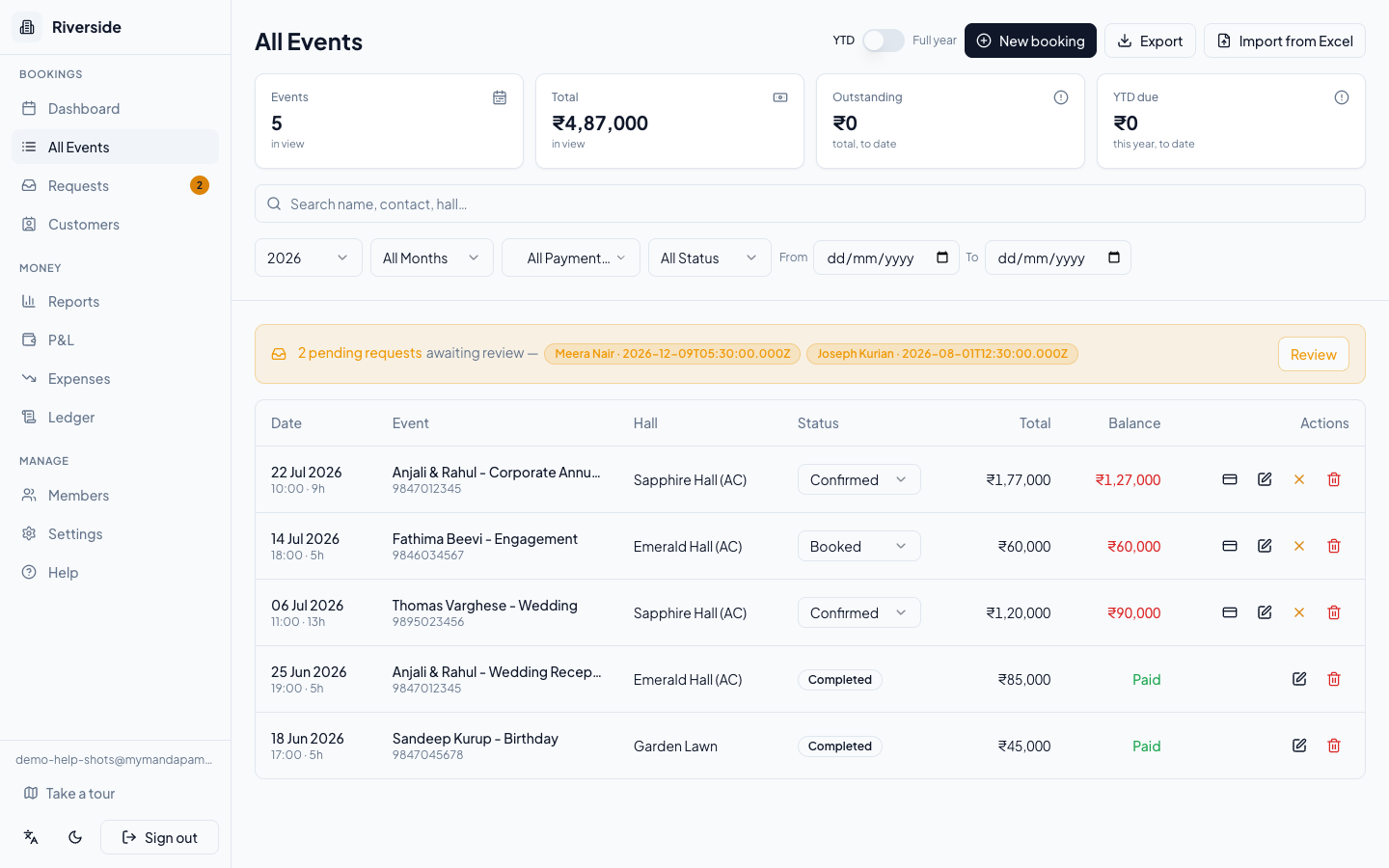
Every payment you record against a booking gets its own numbered receipt — RCP-YYYY-NNNN — generated automatically from a running counter. You can download a PDF receipt for any payment at any time, even months after the event.
Recording a payment
- Go to the Events page. Bookings with an outstanding balance show it in red in the Balance column.
- Click the payment icon (credit card) in the row actions, or tap the Pay button on the booking card on mobile.
- The Receive Payment dialog opens showing the full breakdown: base amount, additional charges, GST (if enabled on this booking), total due, advance already paid, and the current balance.
- Enter the Payment Amount. Use the quick-select buttons — 25%, 50%, 75%, or Full — to fill in a fraction or clear the whole outstanding balance in one click.
- Add an optional Note (for example: "second instalment" or "UPI ref 456789").
- Click Record Payment.
A receipt number is assigned immediately (for example RCP-2026-0001) and the booking's balance updates on screen.
Tip: You can record payments in stages — advance up front, balance later. Each payment gets its own receipt number and appears separately in the booking detail.
Downloading a receipt
- Click any booking row to open its detail view.
- Scroll to the Receipts section. Every payment you have recorded appears here with its receipt number, date, and amount.
- Click the receipt icon on any row to download that receipt as a PDF to your device.
The PDF includes your venue name and contact details, the customer name, receipt number, amount received, date and time (IST), and the balance remaining after that payment.
Tip: If you need a GST-itemised tax invoice to share with the customer, use the Download Invoice button at the bottom of the same detail view. See Invoices for details.
Multiple payments and partial advances
The balance shown in the Receive Payment dialog always reflects the running total — all prior payments are already deducted. Record as many payments as needed; the Events page will show the booking as fully paid once the balance reaches zero.
Who can record payments?
Members with the Owner, Admin, or Staff role can all record payments and download receipts. See Members and Roles.
Payments in the ledger
Every payment is automatically appended to the venue ledger. See Ledger for the full chronological timeline of bookings, payments, and cancellations.
Have a question about your own venue? Sign in to ask inside your workspace.