Expenses and Profit & Loss
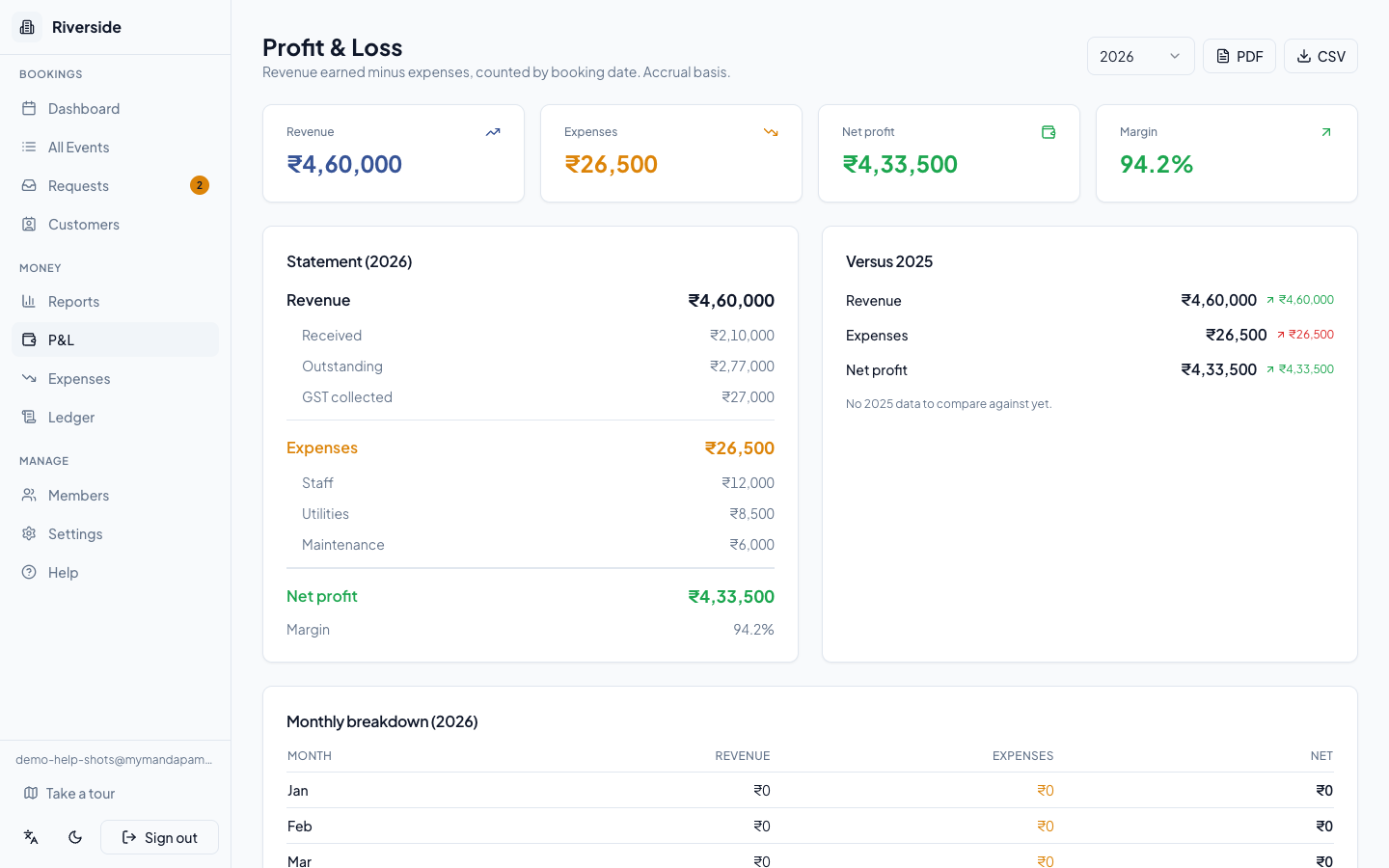
MyMandapam keeps costs separate from revenue so you can see your real margins. You record expenses manually in the Expenses page, and those numbers flow automatically into the P&L statement.
Recording an expense
- Open Expenses in the sidebar.
- Click Add expense (desktop, top-right) or the + button at the bottom-right of the screen (mobile).
- Fill in the form:
- Amount — enter the ₹ amount (must be greater than zero).
- Date — pick the date the cost was incurred using the calendar picker.
- Category — choose from the dropdown. The defaults are: Electricity, Staff, Maintenance, Supplies, Decoration, Catering, Rent, and Other.
- Note (optional) — a brief description, up to 500 characters.
- Link to booking (optional) — search by booking name, date, or hall to attach the expense to a specific event.
- Click Record Expense.
tip: Linking an expense to a booking keeps costs traceable per event. You can search the booking picker by customer name or contact as well as by event name.
Editing or deleting an expense
- Click the pencil icon on any row (or card on mobile) to reopen the form and correct any field, then click Update Expense.
- Click the trash icon to delete. A confirmation dialog will appear — deletion cannot be undone. Only owners and admins can delete expenses. The expenses list and the P&L are visible to owners and admins only; Staff don't see the expenses list.
Filtering and searching
The header shows the count and total ₹ for whatever is currently in view. Use the controls at the top to narrow down:
- Year and Month dropdowns
- Category dropdown
- From / To date pickers for a precise date range
- Search box — matches against the note, category, and linked booking name
Click Export to download the current filtered view as a CSV file.
Customising expense categories
The default categories cover most venues. To add, rename, or remove categories, go to Venue Settings and find the Expense Categories section. This setting is available to owners only.
Reading the Profit & Loss statement
Open P&L in the sidebar. This page is visible to owners and admins only — other members will see an access notice.
Use the year selector (top-right) to switch between years. The page shows:
Four KPI cards — Revenue, Expenses, Net profit, and Margin for the selected year at a glance.
Statement panel:
- Revenue — accrual value of all non-cancelled bookings dated in that year.
- Received — advance payments already collected.
- Outstanding — balance still due from customers.
- GST collected — displayed only when bookings carry GST.
- Expenses — total of all expenses dated in the year, listed by category below.
- Net profit and Margin % summarise the bottom line.
Year-on-year panel — compares Revenue, Expenses, and Net profit against the previous year with percentage-change arrows.
Monthly breakdown — a Jan–Dec table showing Revenue, Expenses, and Net for each month.
Click PDF or CSV to export the P&L report for the selected year.
tip: Revenue is counted on the booking date (accrual basis), not the payment date. Cancelled bookings are excluded from revenue. See Payments and Receipts for how advance payments are recorded.
Have a question about your own venue? Sign in to ask inside your workspace.