Venue Settings and Public Page
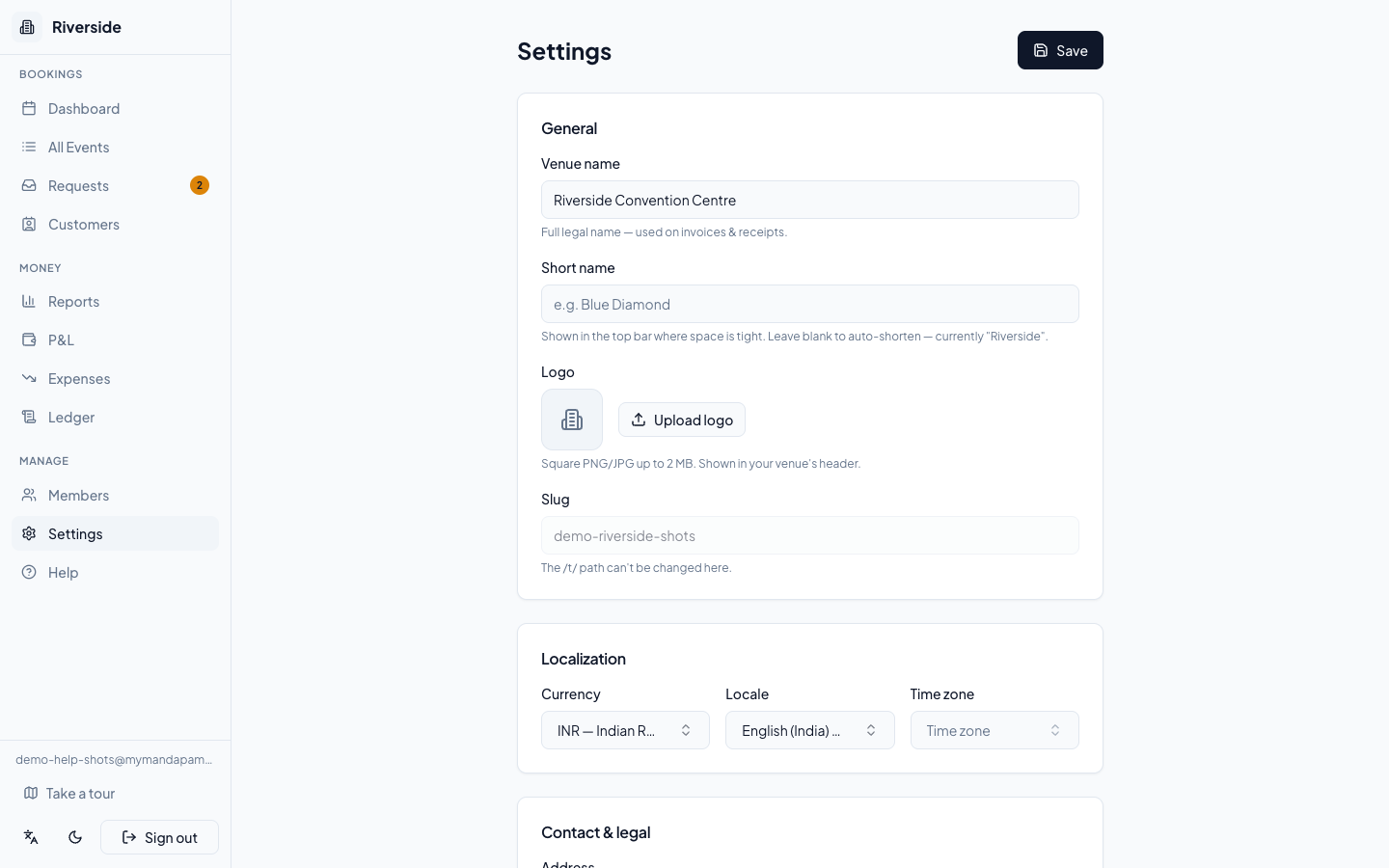
Settings lives under the Manage section of the sidebar. Only the Owner role can edit settings — Admins and Staff see a "no permission" message if they navigate here.
Open Settings
Go to Manage → Settings in the sidebar. All changes are held in memory until you click the Save button at the top right — you can work through several sections before saving.
General
| Field | What it does |
|---|---|
| Venue Name | Required. Appears on invoices, receipts, and the booking widget header. |
| Short Name | Optional abbreviation used in compact UI labels. If blank, the system derives one from the full venue name. |
| Logo | Upload an image (PNG, JPG, or WebP, up to 2 MB). Shown in the booking widget header. Click Replace to swap it; click Remove to delete it. |
| Slug | Your unique URL path — shown read-only for reference. This is the path used in your embed link (mymandapam.app/embed/your-slug). |
Localization
Choose the Currency, Locale, and Timezone that match your venue. These drive how amounts are formatted on invoices and how dates are displayed throughout the console.
Contact & Legal
Fill in your venue's Address, Email, Website, Telephone, Mobile, and WhatsApp number. You can also store your GSTIN and License Number here — they are printed on PDF invoices. These details are visible only to members with the Owner or Admin role; they are not exposed on the public booking widget.
Branding
- Brand Colour — pick a colour with the colour swatch or type a hex code. Applied to buttons and accents in the booking widget so it matches your venue's identity.
- Display Font — choose from Playfair Display (elegant serif), Georgia (classic serif), System UI (clean sans-serif), or the console default. Applied to headings inside the widget.
Halls
Add every bookable space in your venue here. Click Add Hall to create one; type to rename it; click the trash icon to remove it.
tip: You cannot delete a hall that has active bookings. Cancel or move those bookings first.
If your venue has a large hall that is composed of two smaller sections you can also hire independently, use the Made up of toggles on the combined hall's row to select its component halls. When the combined hall is booked, its components are automatically blocked for the same date — and vice versa.
Hall names are what customers see in the booking widget when they choose a space, so keep them short and descriptive.
Expense Categories
Add, rename, or remove the categories used when logging costs in Expenses & P&L. A set of defaults is provided; edit them to match how your venue tracks spending.
GST / Tax
Toggle GST on to enable tax on invoices. When enabled:
- Default GST Rate — the percentage applied to new invoices (e.g. 18).
- Default Pricing — Exclusive adds tax on top of the quoted price; Inclusive means tax is already baked into the quoted price.
- SAC Code — the service accounting code printed on GST invoices (default 997212 covers banquet hall services).
- GST on by default — when ticked, new bookings have GST pre-enabled so you do not have to switch it on each time.
See Invoices for how GST appears on the documents you send customers.
Booking Widget (Public Page)
The Booking Widget is the customer-facing booking page for your venue, reachable at mymandapam.app/embed/your-slug and embeddable on your own website.
Toggle it On to activate it. When the widget is off, anyone who visits that URL sees a "not available" message — no bookings or enquiries come through.
Request types
Tick at least one option:
- Enquiry — the customer sends a general message with no specific date attached.
- Hold a Date — the customer picks an available date from the calendar and submits a dated hold request.
Both can be active at the same time, giving customers the flexibility to do either.
Intro message
Optional text (up to 500 characters) shown above the request form. Use it to set expectations — typical response times, deposit policy, or anything else you want customers to read before they submit.
Embed snippet
Click Copy to copy the <iframe> code block, then paste it into any page on your venue website. The widget auto-sizes to its content height. Click the Preview icon (external link) to open the live widget in a new tab and check how it looks before sharing the link.
tip: After enabling the widget, see Booking Requests and Enquiries to learn how incoming hold requests and enquiries land in your staff inbox.
Have a question about your own venue? Sign in to ask inside your workspace.