Members & Roles
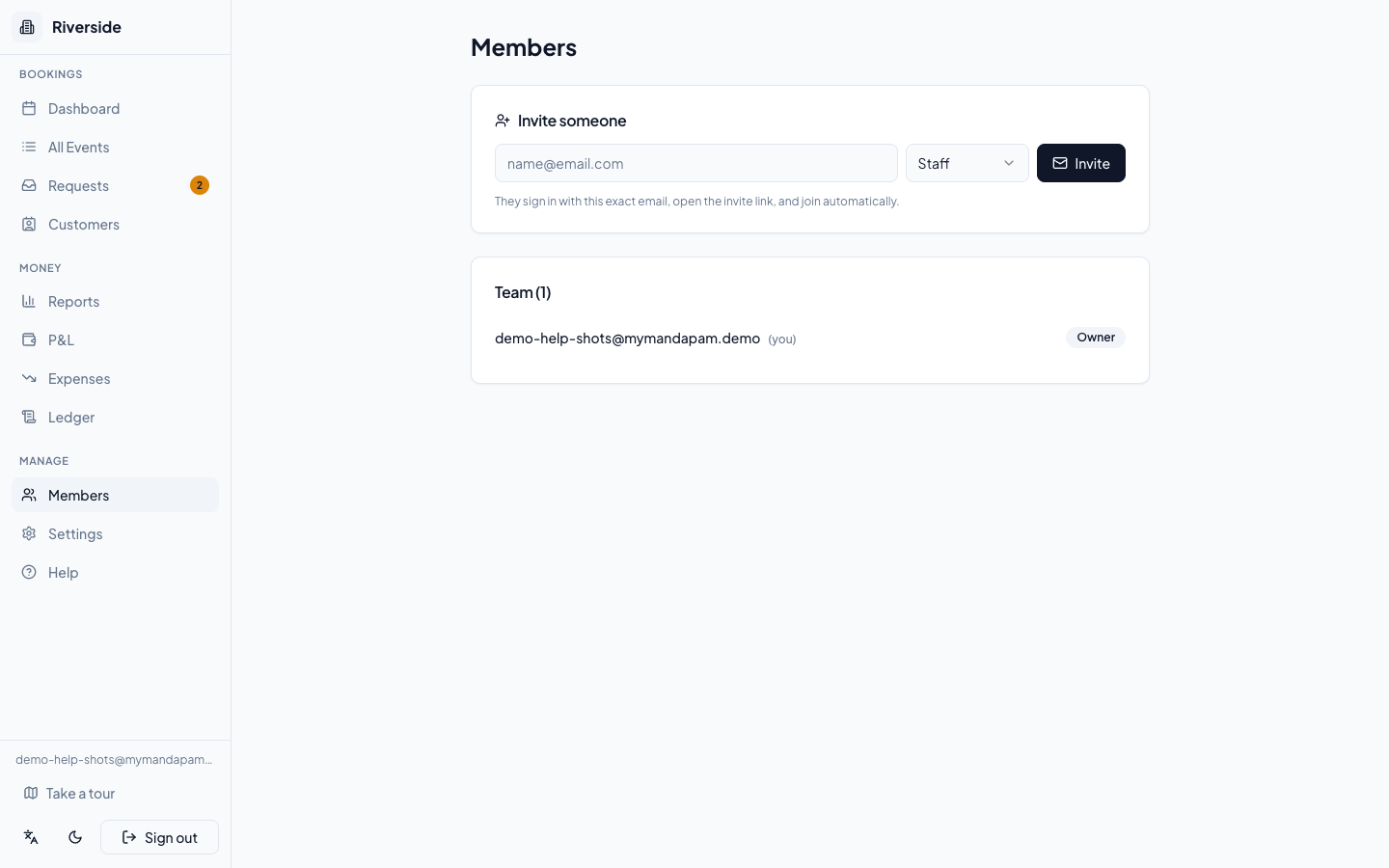
The Members page (under Manage in the sidebar) lets you invite colleagues, adjust their roles, and remove access. Only Owner and Admin accounts can open this page.
The three roles
| Role | What they can do |
|---|---|
| Owner | Everything — bookings, payments, expenses, financials (P&L / Reports), settings, and member management. The last owner cannot be removed or demoted. |
| Admin | Same as Owner except they cannot change Venue Settings. They can invite and remove Staff members. |
| Staff | Create and edit bookings, cancel bookings, and record payments. Cannot view the P&L, cannot manage members, and cannot change settings. |
tip: Give front-desk staff the Staff role so they can handle day-to-day bookings without being able to see your financials or change venue configuration.
Invite someone
- Open Members from the sidebar (under Manage).
- Type the person's email address in the Invite someone card.
- Pick a role — Staff or Admin — from the dropdown.
- Click Invite.
- The page shows the pending invite with a Copy link button. Copy the link and send it to the person yourself — for example via WhatsApp or email. The system does not send an automatic email.
The invite link is valid for 14 days. The person must sign in with exactly the invited email address, open the link, and click Accept invite to join. If they are signed in with a different Google account the page will ask them to switch.
tip: If a pending invite is no longer needed, click the trash icon next to it to revoke it before it expires.
Change a member's role
In the Team card, find the member and use the role dropdown (Admin / Staff) to switch their role. Your own entry and the Owner's entry show as fixed badges — they cannot be changed from the dropdown. You also cannot assign a role higher than your own.
Remove a member
Click the trash icon next to any team member to remove their access immediately. The last Owner cannot be removed. Removing someone does not affect any bookings they created.
See also: Getting Started · Venue Settings & Public Page
Have a question about your own venue? Sign in to ask inside your workspace.