Getting Started as an Operator
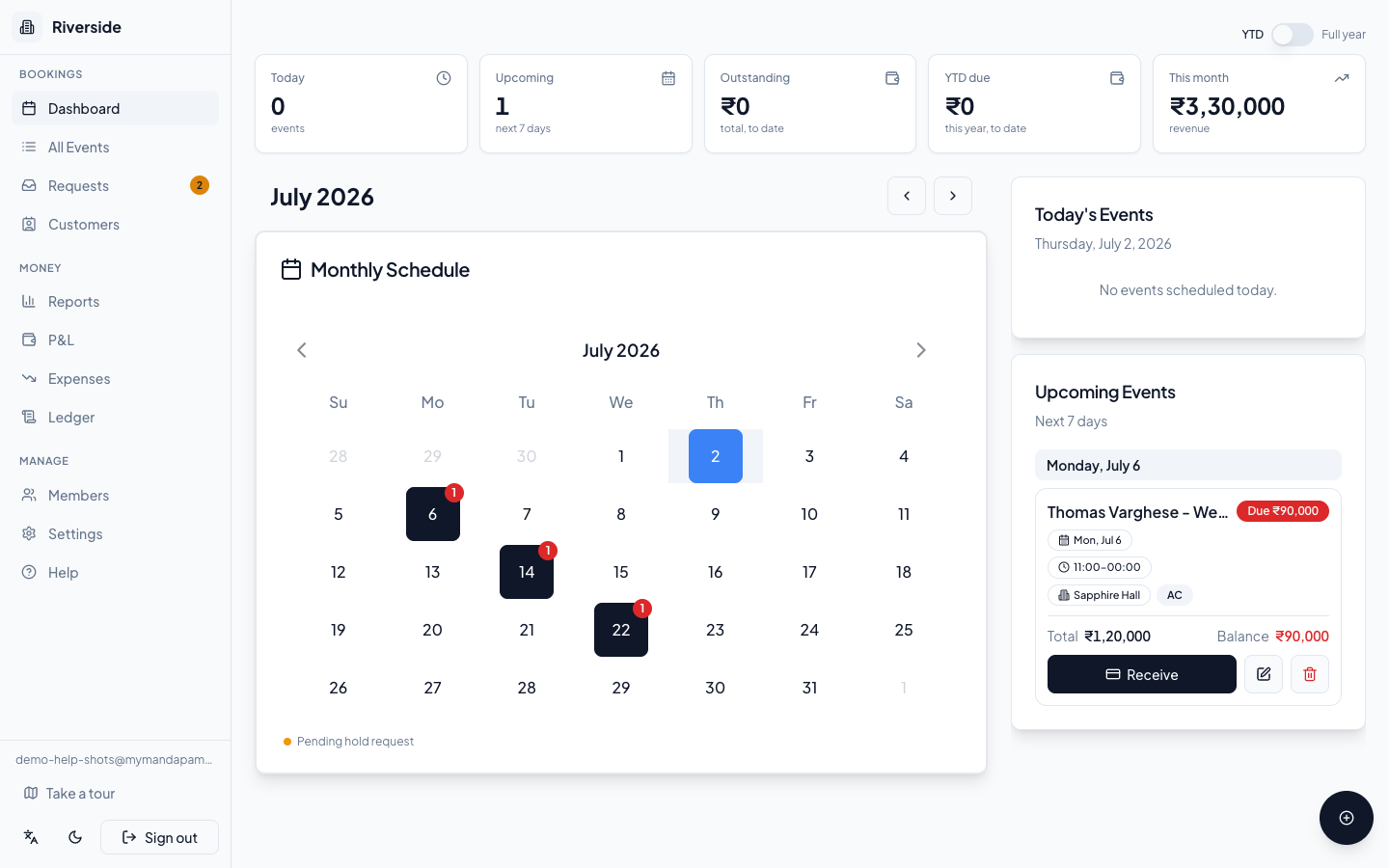
Welcome to your MyMandapam management console — the operator side of mymandapam.app where you handle bookings, track money, and run your venue day-to-day.
Your console at a glance
After signing in you land on the Dashboard. This is your calendar home and live snapshot:
- KPI tiles across the top show today's bookings, upcoming events in the next 7 days, outstanding balance, a full-year revenue toggle, and this month's revenue.
- The month calendar shows every booking at a glance. Click any date to see the events for that day.
- Today's Events and Upcoming Events panels on the side keep you one step ahead.
The sidebar organises everything into three sections:
| Section | What lives here |
|---|---|
| Bookings | Dashboard · All Events · Requests · Customers |
| Money | Reports · P&L · Expenses · Ledger |
| Manage | Members · Settings · Help |
tip: On mobile the sidebar becomes a bottom tab bar — tap the icons along the bottom of the screen to navigate.
Step 1 — Set up your venue
Go to Settings (under Manage) before taking your first booking:
- Enter your Venue Name, Currency, Timezone, and Locale.
- Add your Halls — each hall becomes a bookable space that appears on every booking form.
- Upload your Logo and pick a Brand Colour to match your venue's identity.
- (Optional) Enable the Booking Widget to embed a date-request form on your own website.
See Venue Settings & Public Page for the full walkthrough.
Step 2 — Take your first booking
From the Dashboard, tap the + button (bottom-right corner) to open the booking form. Fill in the customer name, event type, hall, date, start time, duration, and the amount agreed. The booking appears on the calendar immediately.
See Take a Booking for every field explained.
Step 3 — Invite your team
Go to Members (under Manage) to invite colleagues by email. Give front-desk staff the Staff role; give managers the Admin role so they can also view financials and manage members — only the Owner can change Venue Settings.
See Members & Roles for details on what each role can and cannot do.
Have a question about your own venue? Sign in to ask inside your workspace.