Booking Requests and Enquiries
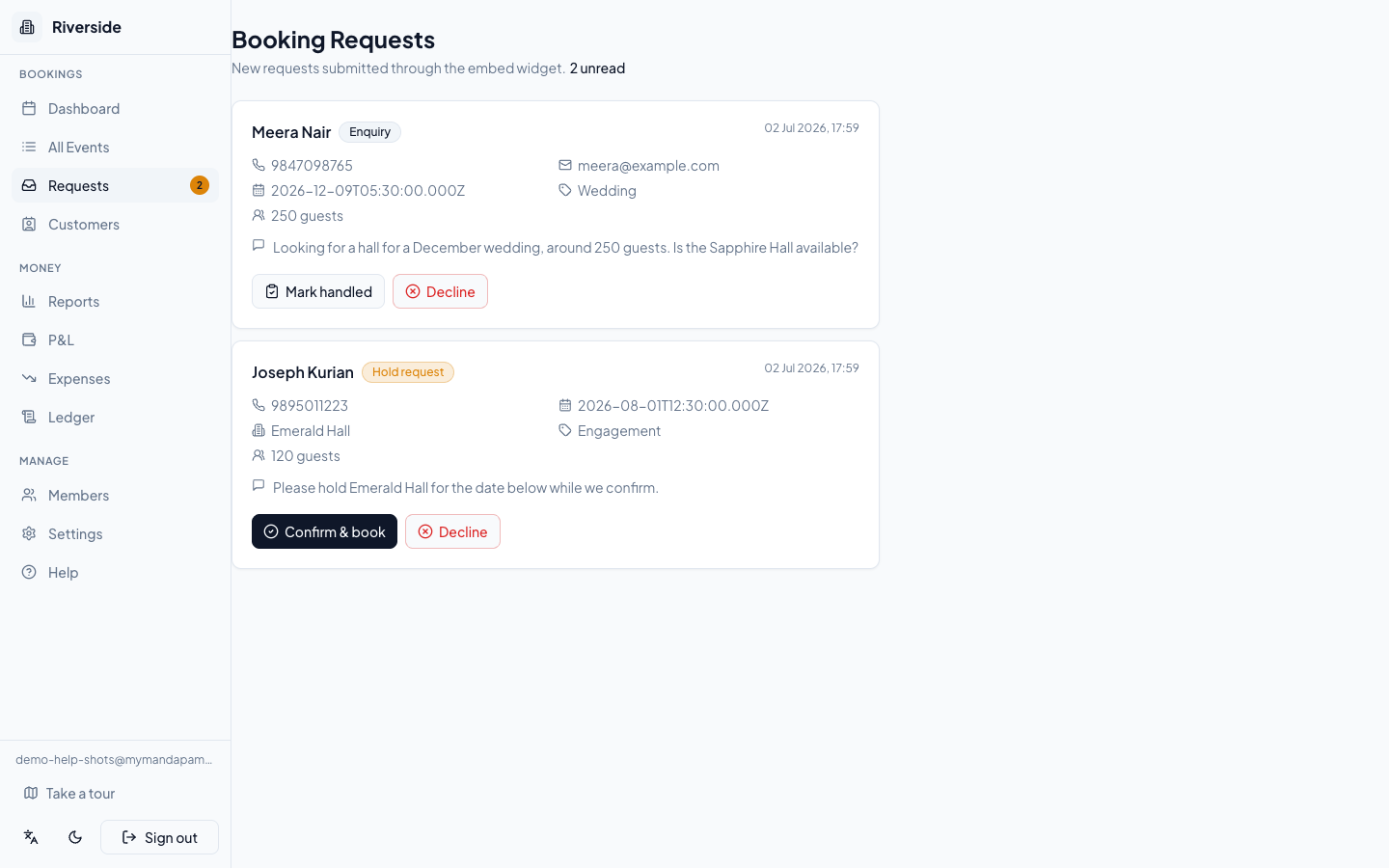
When a visitor fills in the booking form on your embed widget, the submission lands in Booking Requests — the staff inbox in your console sidebar. A badge on the nav item shows how many new items are waiting.
Two request types
| Type | What the guest submitted | Your action |
|---|---|---|
| Hold request | A date-specific request to reserve the hall | Confirm & book — or Decline |
| Enquiry | A general question with no date attached | Mark handled — or Decline |
What you can see on each card
Each card shows the guest's name, phone number, requested date and hall, occasion, expected guest count, and their message. Email is shown if the guest provided one.
Handling a hold request
- Open Booking Requests from the sidebar.
- Find the card labelled Hold request.
- Click Confirm & book. A booking form opens, prefilled with the guest's name, phone, date, hall, occasion, and message.
- Review and adjust the details as needed, then save the booking.
- The request is automatically marked as confirmed and disappears from the inbox.
Tip: Every prefilled field is editable before you save — useful if the guest typed an approximate hall name or you need to split the event across multiple halls.
To turn away a request, click Decline on any card. It leaves the inbox immediately.
Handling an enquiry
- Open Booking Requests from the sidebar.
- Find the card labelled Enquiry.
- Contact the guest using the phone number (or email) shown on the card — the console does not have a built-in reply tool, so reach out directly.
- Once you have followed up, click Mark handled. The enquiry disappears from the inbox.
If the enquiry is spam or you cannot follow up, click Decline.
Keeping requests flowing in
Requests only arrive when your embed widget is enabled. If the inbox is unexpectedly empty, check Venue Settings to confirm the widget is turned on and the embed code is live on your website. See Venue Settings and Public Page for details.
Once a booking is created from a hold request, manage payments and issue receipts from Take a Booking and Payments and Receipts.
Have a question about your own venue? Sign in to ask inside your workspace.